ComputerScienceExpert
$18/per page/
2.1.2 GUI (Graphical User Interface)
Create a subclass of the class JFrame that you will name GUI. This will be the main window of the application.
You can read the documentation about the class JFrame here:https://docs.oracle.com/javase/8/docs/api/javax/swing/JFrame.html
You will need to import the package java.swing.JFrame to make the name JFrame available.
import javax.swing.JFrame;
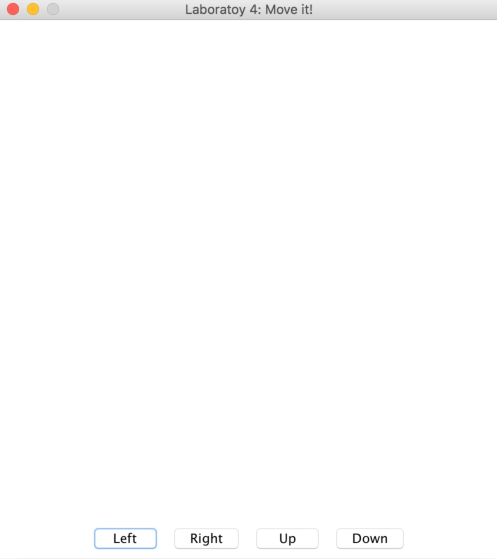
Add a constructor to the class GUI. In a graphical application, the constructor is usually the place where we construct the graphical representation of the application. This is logical since the constructor is called the moment the object is created. Here is the desired visual:
Figure 2 : the desired visual
To obtain a window like this, you will need to add the following elements to the constructor
setDefaultCloseOperation(EXIT_ON_CLOSE);You can consult the documentation at the following address for more information: https://docs.oracle.com/javase/8/docs/api/javax/swing/JFrame.html#setDefaultCloseOperation-int-
setResizable(false);
pack();
The first call makes the size of the application fixed, while pack determines the ideal size of the window based on its elements. This call to the method pack forces a call to the method getPreferredSize() from the classDisplayArea.
If you click on the buttons, you will see that nothing happens. We will need to add an event handler to associate actions with each click of a button.