SophiaPretty
$14/per page/Negotiable
SDEV 140 / Introduction to Software Development
S11 Software Development Lab 2.5 /
Microsoft Visual Studio Express 2012 for Windows Desktop
INTRODUCTION: In this assignment, you will create the Order Input form for the DroneDogs project.
Use the DroneDogs Project Guidelines below, and your textbook, to create your form for the Visual Basic project called DroneDogs, which includes an order input form that calculates the subtotal, sales tax, and total cost for hot dogs from DroneDogs.
DRONEDOGS PROJECT GUIDELINES:
1) The process is similar to creating the Hello User project in Chapter 1. First, download the image file DroneDogs.png from the Session 11 assignment in Blackboard.
2) Start Visual Studio, and create a new Visual Basic project, a Windows Forms application, and name it DroneDogs.
3) Change the File Name property of the form to DroneDogs.vb and change the Text property of the form to your name.
4) Use your S11 SDEV Lab 2 Order Input form to put labels, text boxes, buttons and a picture box onto the form in the appropriate locations. Change the Name property of each control, and the Text property of the labels and buttons, to what you have on the Order Input form.
a. For the picture box, specify the Image as DroneDogs.png by browsing to the location where you downloaded it to and importing the file into the project.
b. For the last three text boxes, change the Read-Only property to True. The user will not enter information into these text boxes.
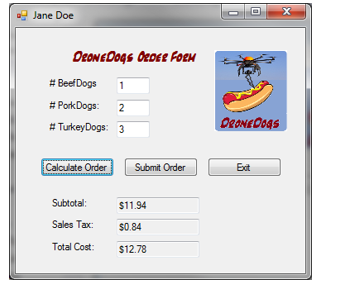
5) Take a screen shot of this form by clicking on the title bar to be sure it is selected, then holding down the ALT key and pressing the PrntScrn key. (If you don’t have a PrntScrn key, use the Windows Snipping Tool to get a screen shot.) PASTE the screen shot where indicated below by selecting Edit / Paste from the menu, or pressing CTRL-V.
6) Select Save All again, rebuild the program, and run the program again by clicking Debug, and Start Without Debugging. Now you should be able to enter an order, and see the calculated amounts.
7) Exit Visual Studio.
SAMPLE SCREEN SHOT:
PASTE YOUR SCREEN SHOT HERE (Yours will be similar to the one above, but it will have your name in the title bar but no sales info.)
Can you help me step by step. Step by step instructions needed. Thanks.
Attachments: